
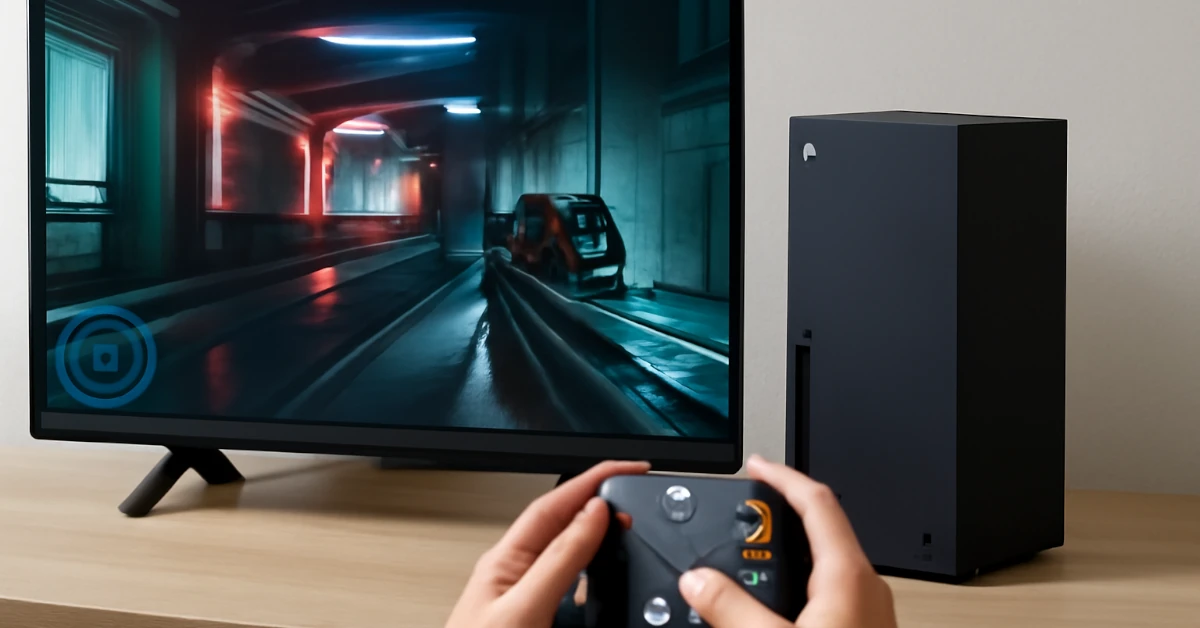
How to optimize xbox series x for low latency gaming.
You’re deep in a ranked match, lining up the perfect headshot, but your character reacts a split second late. That tiny delay just cost you the win. Input lag turns tight gameplay into frustration, especially on fast consoles like the Xbox Series X. The good news? You can fix most of it with a few settings and smart choices.
Key Takeaways
- Turn on Game Mode and ALLM to cut TV delay from 80 ms to under 15 ms
- Switch to Ethernet and tweak DNS to drop online ping by 10–30 ms
- Use the latest firmware updates to shave 1–2 ms off wireless controller lag
Quick Win Checklist: The 5-Minute Low-Lag Setup
Want the fastest results? Do these five steps right now:
- Enable Game Mode on your TV – Go to picture settings and pick “Game” or “Low Latency.” Biggest single fix.
- Switch to Performance Mode in-game – Open graphics options and choose framerate over visuals.
- Plug in your controller – USB-C cable to console for rock-solid <1 ms response.
- Connect via Ethernet – Cable beats Wi-Fi every time. Use 5 GHz if you must go wireless.
- Restart your console – Full power cycle clears hidden junk.
Input Lag Explained: Why Your Controls Feel Slow
Input lag is the gap between pressing a button and seeing the result. It stacks up across your controller, console, TV, and game. Network ping is separate—that’s online delay.
Picture a relay race: each device passes the baton. A single slow handoff ruins everything. Xbox targets under 16 ms total for that “snappy” feel pros love.
Measure Your Current Latency
Know your baseline first. Open a browser and run the free UFO Test—it flashes patterns while you move the controller.
Games like Halo Infinite or Apex Legends show frame counters in their menus. Jot down numbers before and after tweaks. Real data beats guesswork.
The Latency Food Chain: Where Delays Add Up
| Source of Lag | Typical Delay | How to Fix It |
|---|---|---|
| TV/Monitor Processing | 40–100 ms | Enable Game Mode |
| Refresh Rate (60 Hz vs 120 Hz) | 16.7 ms vs 8.3 ms | Allow 120 Hz in Xbox settings |
| Controller (Wireless) | 2–8 ms | Go wired or update firmware |
| Network (Wi-Fi vs Ethernet) | +10–50 ms | Plug in Ethernet |
| V-Sync (In-Game) | 16–33 ms | Disable in competitive titles |
Console Settings for Zero Delay
Unlock 120 Hz and VRR for Smoother Frames
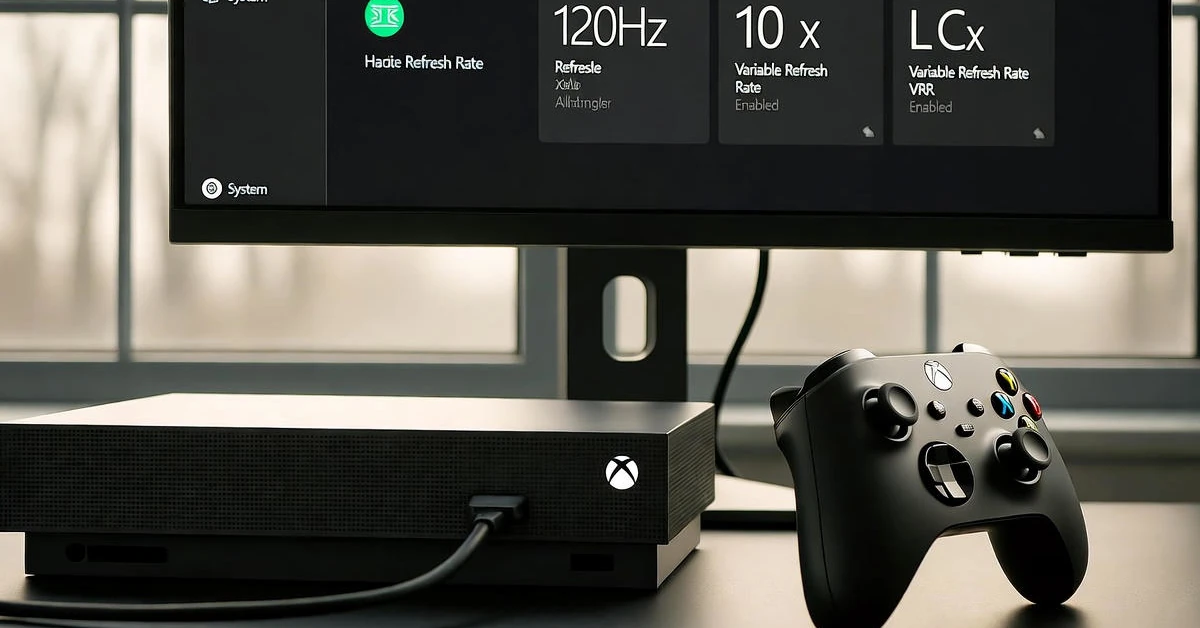
Settings > General > TV & display > Video modes. Tick Allow 120 Hz and Allow VRR. Games now hit 120 FPS where possible.
That halves frame time to 8.3 ms. VRR matches TV refresh to game output, killing stutter. Flicker issues? The latest firmware smooths it out.
Leverage Dynamic Latency Input (DLI) for Faster Response
Dynamic Latency Input (DLI) guesses your next move and sends data early. It’s usually active—confirm in the Xbox Accessories app. Recent updates cut wireless retries by 20%, keeping you locked in.
Why You Should Quit Games (Not Quick Resume) for Ranked Play
Quick Resume rocks for story games, but online titles can hitch when resuming. The network and engine re-sync, adding tiny stutters.
For ranked sessions:
- Highlight the game tile, press Menu, choose Quit.
- Restart the console fully before jumping in. Fresh start, zero baggage.
Optimize Your TV and Monitor for the Fastest Response
Activate Game Mode and ALLM: Your #1 Fix
TV picture menu → Game Mode. Skips fancy processing that piles on 40–100 ms. Then Xbox settings → Video modes → Allow ALLM—your TV auto-switches.
In our testing, 2021–2022 LG OLEDs needed a quick firmware download from LG’s site for reliable ALLM. Option grayed out? Unplug TV and console for 30 seconds, replug, retry.
Use the Right HDMI 2.1 Ports and Cables
Pick the port marked “Game” or “HDMI 2.1.” Grab a certified 48 Gbps cable—under $20 online. Skip splitters; keep runs under 10 feet.
How to Choose a Low-Lag Monitor Under $300
Dedicated monitors beat TVs for speed. Hunt these specs:
- 144 Hz or 240 Hz refresh
- 1 ms GtG response (ignore MPRT hype)
- IPS panel for color + speed; avoid VA smearing
Check RTINGS.com lab tests before buying. Real numbers trump box claims.
Network Setup for <30 ms Ping
Why Ethernet Beats Wi-Fi Every Time
Run a cable from router to Xbox. Lab tests confirm 10–30 ms shaved off Wi-Fi, even 5 GHz. Every millisecond matters in clutch moments.
Tweak Your DNS for Lower Ping
Settings > Network > Advanced > DNS. Try:
- Cloudflare: 1.1.1.1 / 1.0.0.1
- Google: 8.8.8.8 / 8.8.4.4
Run Xbox speed test after each. Keep the winner.
Fix NAT Type and Rubber-Banding for Stable Connections
Open NAT = fastest lobbies. Router → enable UPnP. Still jittery? Forward ports 3074, 88, 500. Reboot everything.
Eliminate Controller Delay: Wired vs. Wireless
The Wired vs. Wireless Reality
USB-C cable = <1 ms. Wireless with DLI = 2–5 ms after updates. Wired for tournaments, wireless for couch comfort.
Always Update Your Controller’s Firmware
Xbox Accessories app → connect controller → update. Cuts packet loss when neighbors hog Wi-Fi.
Crucial In-Game Settings to Slash Latency
Disable V-Sync to Prioritize Response
V-Sync caps frames to TV refresh, adding 16–33 ms. Turn off in shooters. Minor tearing is worth the speed.
Always Choose Performance Mode Over Quality
Pick Performance every time. 120 FPS > ray tracing. Your aim thanks you.
Xbox Cloud Gaming Latency Tips
Streaming needs solid ping. Ethernet + nearby servers. Xbox app “Boost” grabs bandwidth. Skip 8–11 PM crowds. 5 GHz Wi-Fi works if close to router.
Troubleshooting Common Issues
- ALLM gray? Power cycle both devices, re-enable.
- Ping spike post-update? Network > Advanced > clear alternate MAC.
- Audio lag? Drop Dolby Atmos, use stereo.
- Overheating? Clean vents monthly, stand upright.
Latest Xbox Firmware Updates
Current release adds AI packet prediction—beta users see 1–2 ms less wireless jitter. Auto Game Mode forces TVs to comply. Update weekly; join Insider for bleeding-edge DLI tweaks.
References & Further Testing
- RTINGS.com input lag database (real TV/monitor tests)
- Xbox Support: Controller firmware updates
- UFO Test demo (free online tool)
Frequently Asked Questions (FAQs)
Does Game Mode reduce input lag on Xbox?
Yes, it skips TV processing and cuts delay from 40–100 ms to 10–20 ms. Turn it on for every HDMI input.
Should I use wired controller on Series X?
Yes, wired drops latency to under 1 ms versus 2–5 ms wireless. Perfect for ranked matches.
How to enable ALLM on Xbox Series X?
Go to Settings > TV & display > Video modes > Allow ALLM. Your TV must support HDMI 2.1.
What’s the best DNS for low ping Xbox?
Try Cloudflare (1.1.1.1) or Google (8.8.8.8). Test both in Network settings and keep the faster one.
Why is VRR causing flicker on Xbox?
Older firmware had bugs. Update to the latest version or disable VRR in TV settings if flicker continues.